Extra features
Step 01 — Open “Edit photos”
Select your photos in Lightroom Classic and go to Library → Plug-in Extras → Edit photos.
Step 02 — Activate Studio Crop
Under “Crop”, select “Studio Crop”. Then, under “Studio Crop”, choose one of the three styles:
Studio Crop · Normal — balanced, with some breathing room around the subject
Studio Crop · Half body — half body crop
Studio Crop · Three quarter body — three quarter body crop
Step 03 — Set the aspect ratio
Set the desired aspect ratio (e.g. 2:3) and enable “Align to eyes” if needed.
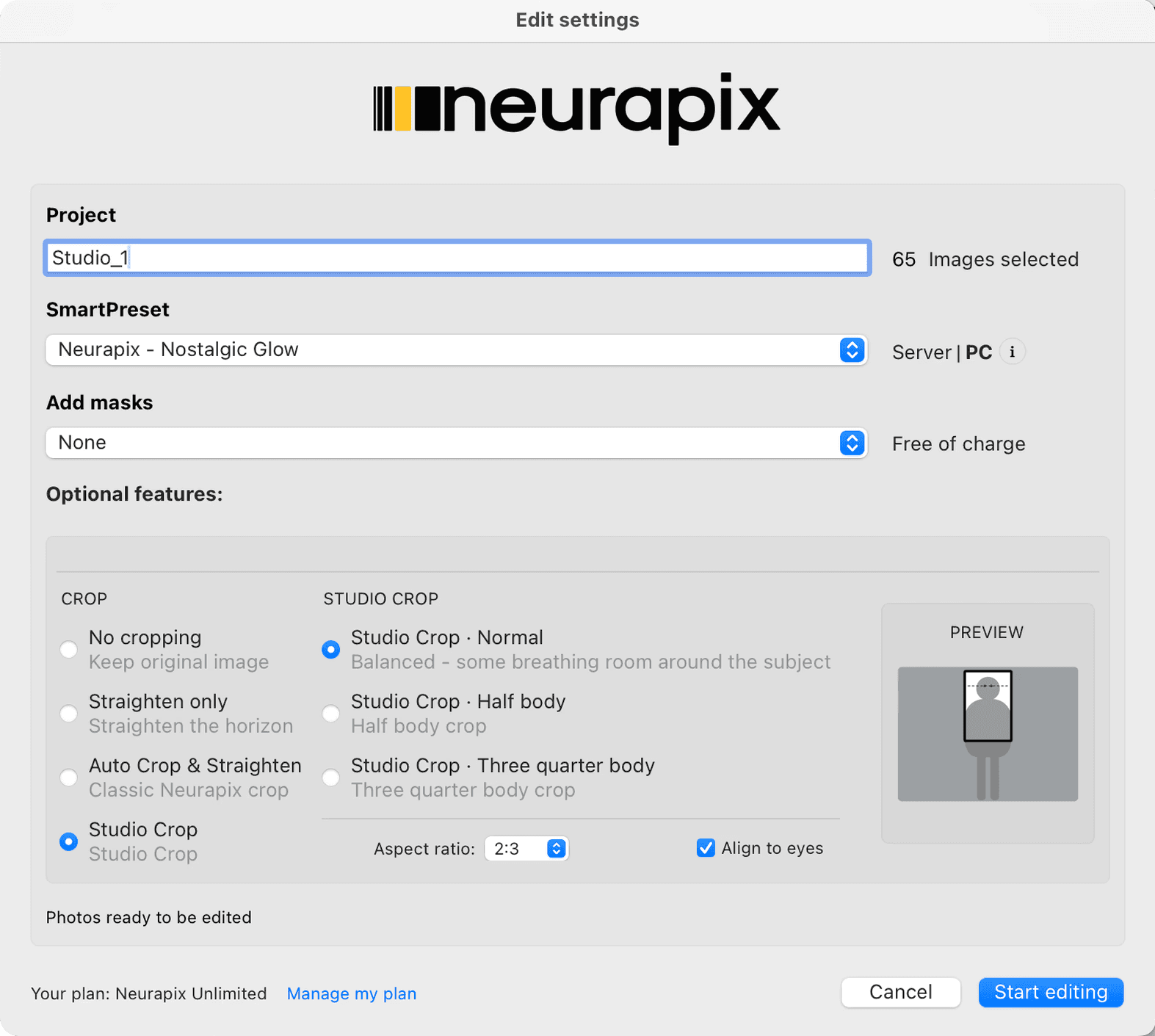
Step 04 — Start editing
Click “Start editing” — Studio Crop is applied automatically to all photos during processing.
💡 The preview on the right of the dialog shows live how the crop will look. On an Unlimited plan, optional features like cropping are included; with Pay-per-Picture they add €0.01 per image — at most €0.05 per photo.

Focus on your craft.
Let us do the editing.

AI editing and culling for photographers – right inside Lightroom Classic.