Neurapix Editing
Turn your editing history into a personal AI and breeze through thousands of photos in minutes - with full control over every slider.
Deep integration
Neurapix is fully integrated into Lightroom Classic. No switching between applications or tedious exports - keep your entire workflow in one place.

Let your pictures flow.
Neurapix Flow closes the gap between the shutter and your selection. Your frames land in Lightroom Classic via Wi-Fi upload or SD card - already edited with your full Neurapix look and ready to cull.


Features
Everything you need
to deliver great photos.
Cropping & straightening
Learns your framing after 500 crops.

Black & white SmartPresets
Train a B&W look from 20 images.


Adobe AI masks built in
Your adaptive presets, applied for you.
Consistent colours
Neurapix looks at every image in the project, so skin tones and white balance match from the first photo to the last.


+20k downloads

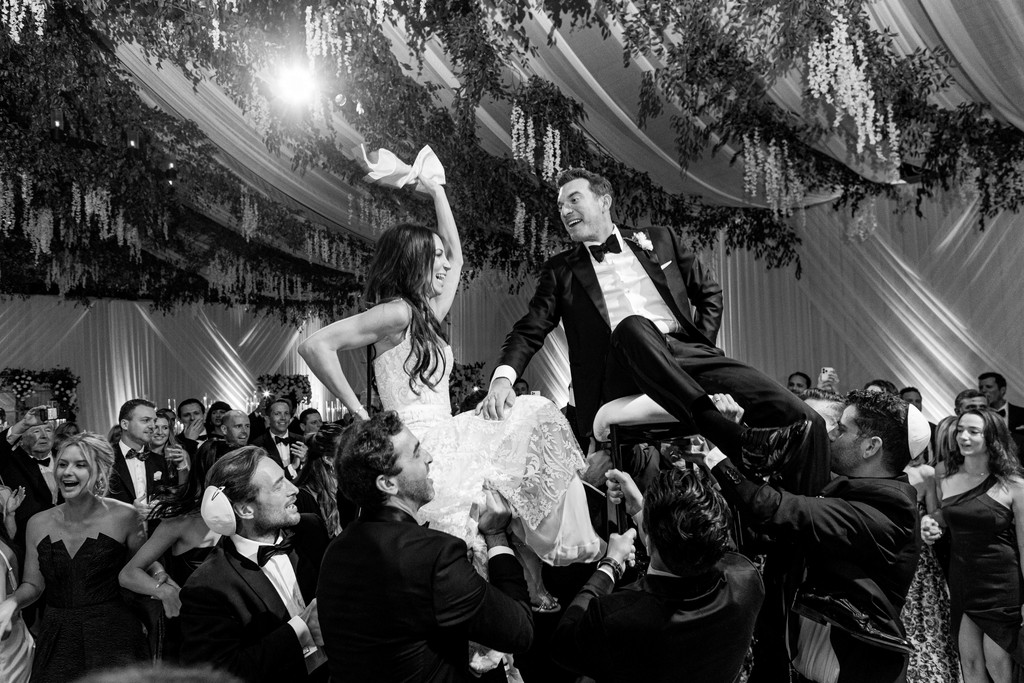


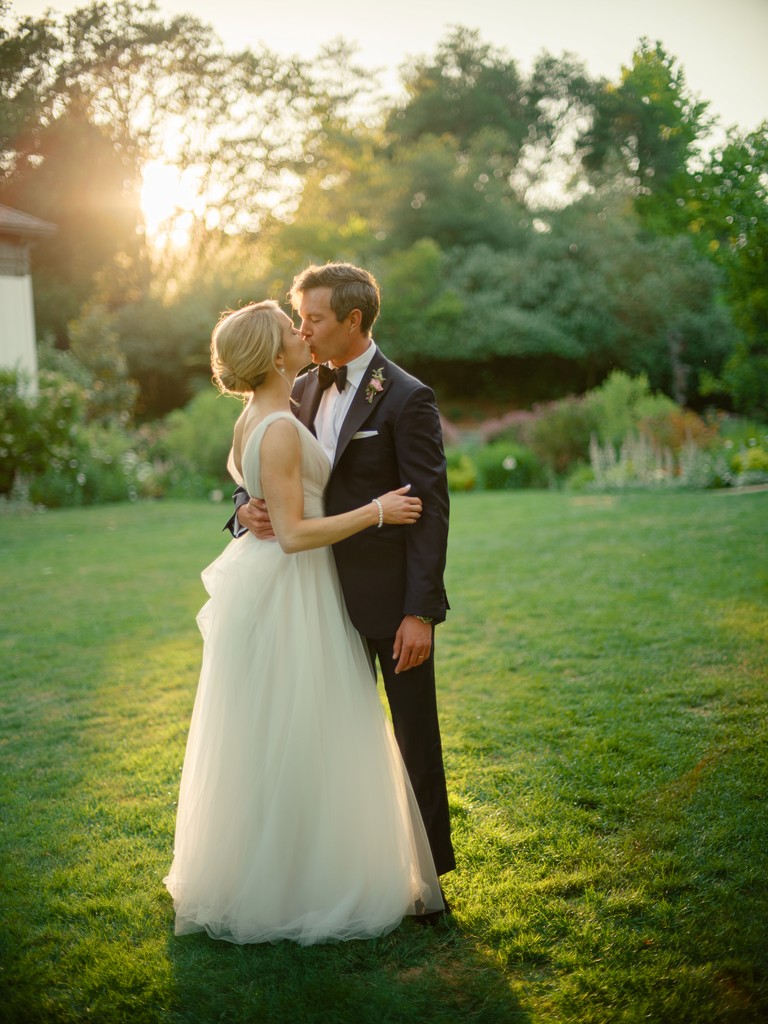




Your look, your way.
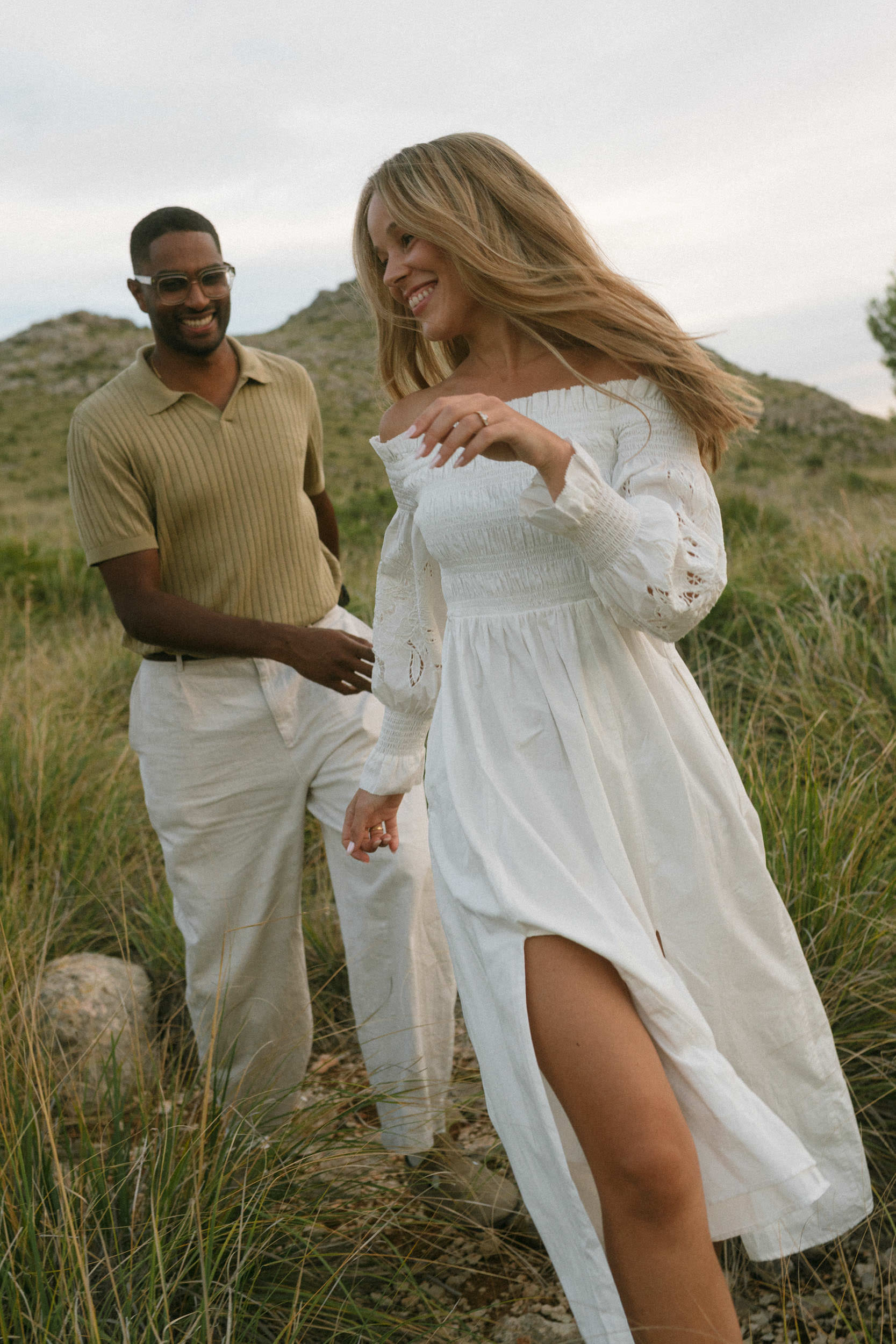

One-off projects & quick starts
Edit 20 images once and start within minutes.


Your personal signature look
Upload 500+ edited RAWs and let your SmartPreset do the heavy lifting.


PRO SmartPresets, tailored to you
Buy a PRO SmartPreset from our store and customize it to your own style.



Always adaptable
Style changed?
Your AI has you covered.
For consistent results, avoid mixing styles. Train a new SmartPreset when your aesthetic changes, or adjust your base configuration right inside Lightroom.
Choose your workflow:
Local or server-powered.
On your computer
Watch your photos get edited live in Lightroom Classic.
- RAW files stay local
- Uses your hardware – no upload time
- Works offline after a quick initial license check
Server-powered
Enjoy ultimate flexibility and unmatched speed.
- No GPU required on your side
- Fast editing powered by high-performance servers
- 100% GDPR-compliant data privacy and protection
How do I create a SmartPreset?
Use the ‘Create SmartPreset’ option via the Lightroom menu (Library > Additional plugin options > Create SmartPreset) Create SmartPreset) with edited RAW images. For more information, please refer to our tutorial videos.
How long does it take to create a SmartPreset?
The creation time depends on several factors, such as current server load (queue) and the number of uploaded images. Under normal conditions, creating a SmartPreset takes between one and a half and three hours, though it may be faster or slower in some cases. Preparing a SmartPreset for local processing as part of Neurapix Unlimited can take up to two days. In all cases, you’ll receive an email notification as soon as your SmartPreset is ready to use.
What is the difference between server processing and local processing?
The location where your images are edited initially depends on the pricing model you choose. If you pay per image, editing is done on Neurapix’s servers in Germany. In this case, your photos are uploaded in an intelligently preprocessed format and, after editing, downloaded again as a complete event. Processing speed is up to 1,000 images per minute. With Neurapix Unlimited, editing happens locally on your own computer. The speed depends on your hardware. Unlike server-based editing, results appear in “waves” of multiple images (batches), which means the first results are available after just a few seconds. Neurapix therefore offers real-time image editing, and no downloading of results is required.
How do I edit photos with Neurapix?
In Adobe Lightroom Classic, select all the images you want to edit and click on ‘Library’ > ‘Additional module options’ > Edit images’ in the Lightroom menu. Now select the desired SmartPreset and click on ‘Edit’. You can also apply optional features and masks if required.
How do I edit my photos in black and white with Neurapix?
Using a B/W SmartPreset works in exactly the same way as with a colour SmartPreset: After clicking on ‘Edit images’ in the Lightroom menu, the B/W style is simply selected and used as an independent SmartPreset as usual. If you have first edited a shoot in colour, you can then simply edit it again with a B/W SmartPreset (using virtual copies if necessary).

Focus on your craft.
Let us do the editing.

AI editing and culling for photographers – right inside Lightroom Classic.